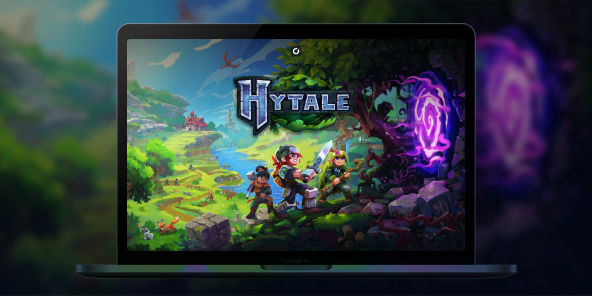
How to create or join Hytale servers?
Want to create or join servers and play with your friends on Minecraft's concurrent game? With Shadow PC, you stream a full Windows gaming PC and you can play the official Windows version of Hytale, even if your setup is limited. Team up with friends for multiplayer adventures, join community worlds, or build your own private server.

Play Hytale online with Shadow PC
Shadow PC is a high end Windows gaming PC in the cloud. Install Hytale like you would on a regular PC. Play with a smooth streamed experience and jump into multiplayer coop adventures.
AMD EPYC CPU, 8 cores (3.25 GHz); 16 GB RAM; NVIDIA RTX 2000 Ada GPU, 16 GB (GeForce RTX 4060-class GPU); 512 GB SSD
AMD EPYC CPU, 8 cores (up to 3.7 GHz); 28 GB RAM; NVIDIA RTX A4500 GPU, 20 GB (GeForce RTX 3070 Ti–class GPU); 512 GB SSD
Hytale: a Minecraft-like sandbox survival experience
Hytale mixes a block based sandbox with RPG flavored exploration. It is built for adventurers, builders, and creators who want a world that feels alive, full of secrets, and shaped by the community.
Mods and servers that feel effortless to join
Hytale is designed around a server first philosophy: even single player is treated like joining a local server. The goal is simple for players: join a server without fighting with separate client mod packs, and let servers shape the experience.
How to play Hytale online with friends?
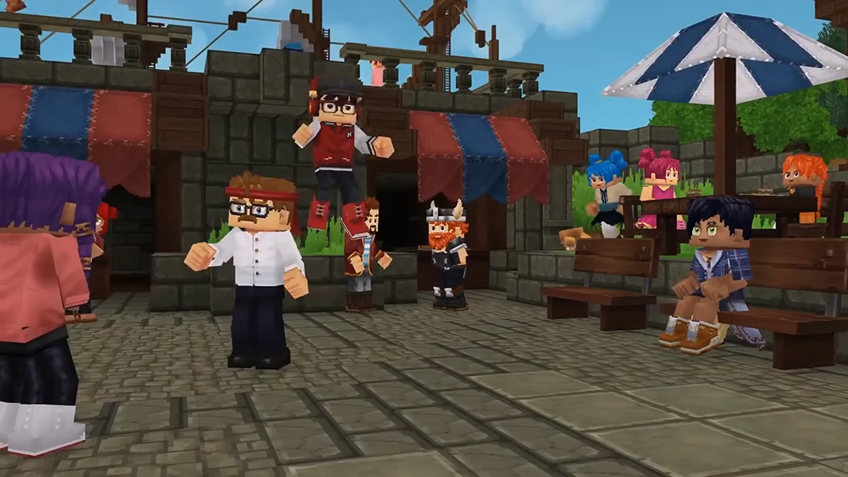
Online play in Hytale revolves around one thing: servers. In just a few clicks, you can jump into a public server with other players, or set up a private space reserved for your own group.
Hosting a public Hytale server
If you want to run your own public server, you have several hosting options available, with pricing tiers to suit different budgets and player counts.
To help you compare providers, we recommend starting with this article to the best Hytale server hosting services:
https://www.hostinger.com/tutorials/best-hytale-server-hosting-providers
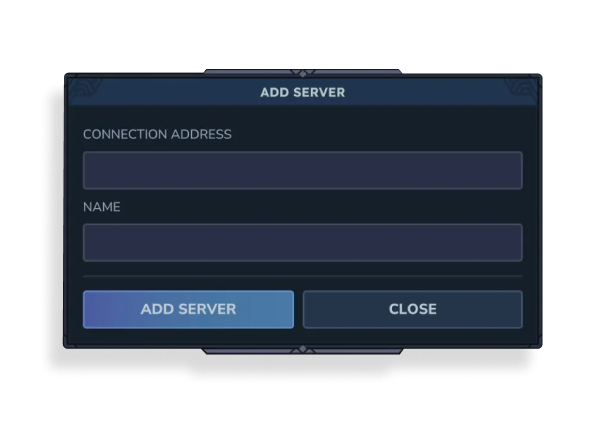
If you prefer joining servers that already exist, just open the Servers menu, click Add Server, then enter the server’s Connection Address and assign it a name. You’ll be connected in seconds.

Creating a private server (friends-only)
If your goal is simply to play with friends and not with strangers, you can create a private multiplayer session instead.
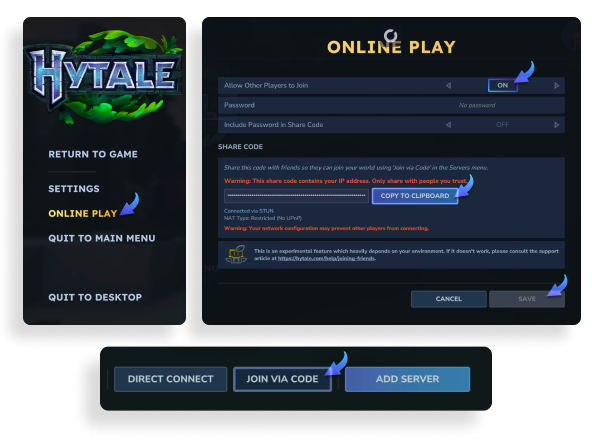
To set up a private peer-to-peer server, go to the Worlds tab and choose the mode you want: Adventure, Exploration, or Creative. Name your world and adjust any settings to match your preferences. Once the world is running, press Escape, open Online Play, and make sure Allow Other Players to Join is turned On. You can optionally add a password, then click Save.
The game will then generate a join code. Click Copy to Clipboard and send it to your friend(s). On their side, they’ll need to go to the Servers tab, select Join via code, paste the code, and connect.
Installing mods to enhance your experience
WIth Shadow PC, since you have access to a full Windows PC, you can even install mods to expand and improve your gameplay.
Start by visiting:
https://www.curseforge.com/download/app
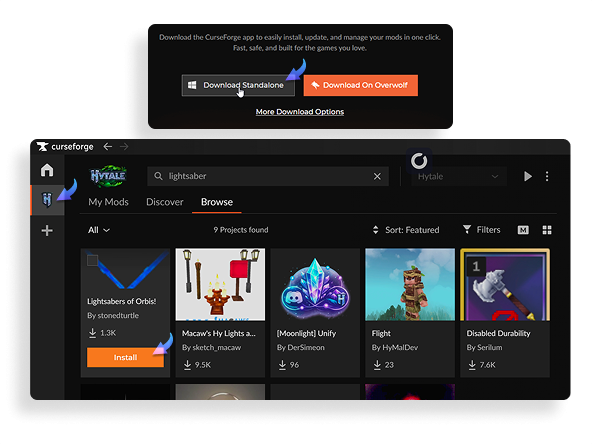
Download and install the CurseForge app. Once it’s open, add Hytale from the left-hand sidebar (if it isn’t already listed), then browse the available mods. When you find one you like, simply click Install.
After installation, your mod should appear in the My Mods tab. From there, simply launch the game via its official launcher and you’re ready to play.
Turn any of your device into a gaming PC in just a few clicks!
Whether you're on a Mac (with few games compatible with macOS), a Linux machine (where Windows emulation hurts performance), or an older PC (one with an underpowered graphics card), Shadow gives you access in just a few clicks to a powerful gaming PC to install all your favorite games*!

Choose the plan that best fits your needs.


Launch Shadow, Hytale, and start playing. It’s that simple!
Your gaming PC, anytime, anywhere
Connect to your high-performance Shadow PC and play Hytale along with all your favorite titles on any device, whether it’s an iPhone, iPad, mobile tablet, Windows or Linux computer, Meta Quest, or just your web browser. Benefit from a smooth, dependable, and ultimate cloud gaming service wherever you go, and elevate your gaming sessions with the unmatched power of Shadow PC.

FAQ
Join the same server. You can pick a public server, or set up a private server and share the address with your group. Servers can be vanilla or modded, so agree on a server style before you start.
Yes. You can host a private server for friends, then share the connection details. For a server that runs all day, use a dedicated hosting option and keep regular backups.
Yes, servers are a core part of the modding vision. Many community servers will offer custom rules, content, and experiences, so check each server description before joining.
Shadow is a complete Windows gaming PC fully hosted in the cloud. It’s the only virtual machine whose performance rivals that of a local PC. And unlike cloud-gaming services, you can install and run any game, app, or software: there’s no restricted catalog.
Your Shadow is a true professional Windows workstation. Install everything you need*: Adobe Suite, CAD tools, development IDEs, etc.
Yes, both the Shadow app and the browser version work on most recent versions of macOS and computers.
For each device of your choosing, you can download the Shadow PC software client for free; in particular, this will allow you to test the browsing quality and adjust your video quality settings to the highest resolution, such as 4k. When you need to quickly access your environment and files via a new device or a workstation that's limited in terms of software installation, you can now directly access your Shadow PC via a browser. No installation required, it's quick and easy: Just head to the pc.shadow.tech web page! This access mode comes particularly in handy when you're giving a client a demo or delivering training via a demanding software directly on your clients or prospects' device: No need to lug around your own hardware, with your software and data, as Shadow PC gives you easy and instant access to it, at any tie and anywhere.
Yes, with Shadow you get 1 Gb/s download speeds to your Shadow PC, even if your local internet connection is slow.
In short: no. We provide enough power to meet your needs based on your chosen plan. Regarding latency, our advanced technology enables smooth usage even at low bandwidth (starting at 15 Mb/s), delivering virtually imperceptible latency. Of course, compression can impact image quality, and if your connection is too weak, you may notice a difference compared to the original image.
Yes, Shadow does not limit the resolution, allowing you to run Windows, your games, and software in 4K UHD. Please note that some games may not support 4K or may experience reduced performance at this resolution. Additionally, higher resolutions require more bandwidth, meaning you'll need a faster and more stable internet connection compared to lower resolutions.
Yes, you can activate a second screen directly on the Quick Menu.