Control Windows from your couch
A Windows PC on a television has one obvious problem: the cursor. Shadow solves it with three inputs, none of which needs a desk. Gamepad as a mouse drives the Windows pointer with your controller stick. Companion mode turns your phone into a trackpad and a keyboard. And if you own no controller at all, the virtual controller turns that same phone into a gamepad. A Bluetooth mouse and keyboard still pair with your box if you want them. Nothing to buy before you start playing.
Your controller moves the cursor
Gamepad as a mouse puts the Windows pointer on your controller stick. The left stick moves it, the triggers click, and Windows behaves the way it always does.
That covers most of an evening: browse a launcher, start a download, close a window that opened where you didn't want it, change a graphics setting before a session.
You stay in the same hands you play with. No second device, no cursor hunting.
Your phone becomes a trackpad
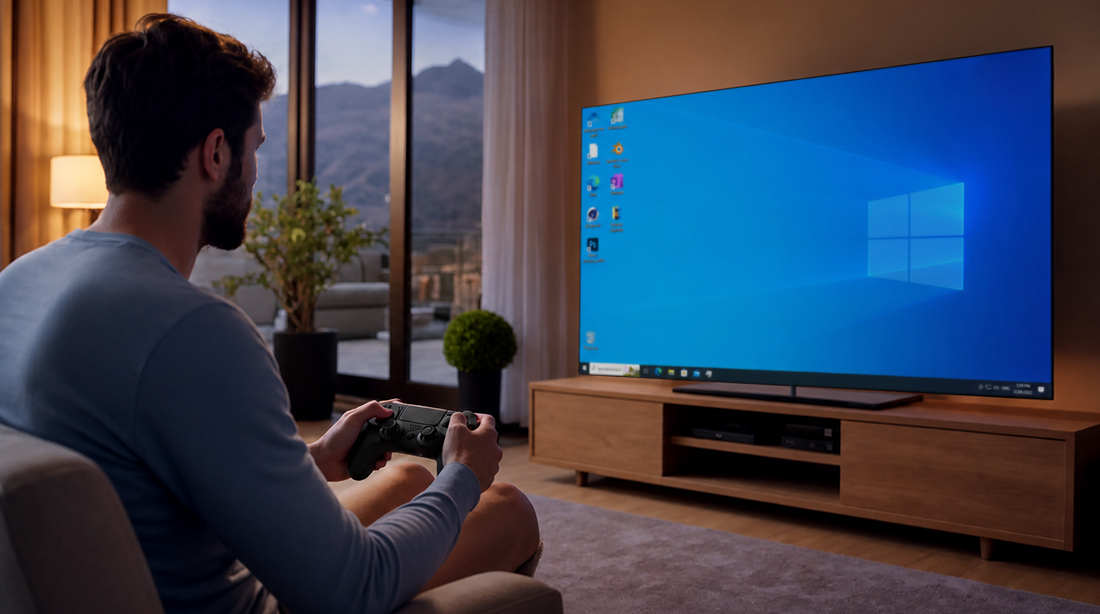
Companion mode connects your smartphone to your Shadow PC and turns it into a trackpad with a full keyboard.
It earns its place the moment text appears: a password field, a search bar, a friend's username, a chat window. Typing those with a stick is a chore. Typing them with your thumbs takes seconds.
The phone stays on the armrest, and the TV stays a TV.
No gamepad? Your phone is one
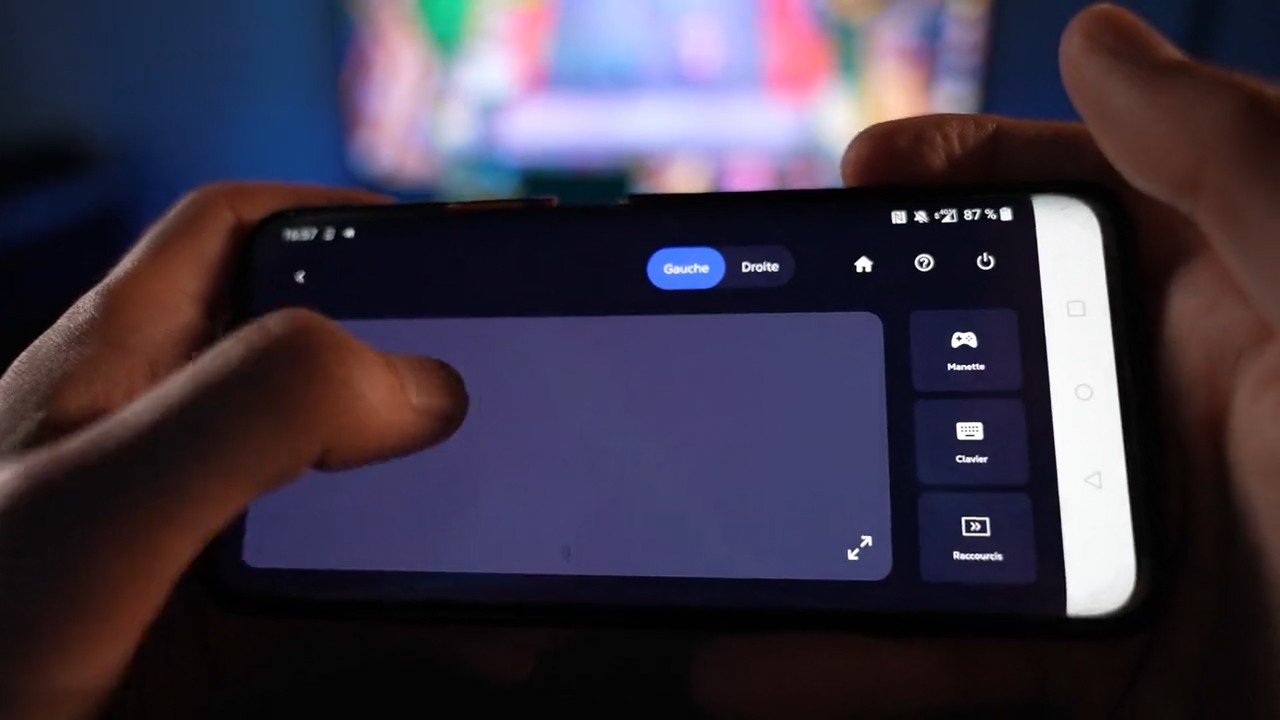
The Shadow mobile app carries a virtual controller: sticks, buttons and triggers on the screen of the phone already in your pocket.
It is the answer to the evening where the only controller in the house has a flat battery, and to the first session of someone who has never bought one. Enough to start a game tonight, not a reason to give up your pad afterwards.
Download the app, sign in, play.
Which input for which moment
| Gamepad as a mouse | Companion mode | Virtual controller | Bluetooth mouse and keyboard | |
|---|---|---|---|---|
| Move the Windows cursor |
Gamepad as a mouse
Available
|
Companion mode
Available
|
Virtual controller
Not available
|
Bluetooth mouse and keyboard
Available
|
| Type a password or a search |
Gamepad as a mouse
On-screen keyboard
|
Companion mode
Available
|
Virtual controller
Not available
|
Bluetooth mouse and keyboard
Available
|
| Play a controller game |
Gamepad as a mouse
Available
|
Companion mode
Not available
|
Virtual controller
Available
|
Bluetooth mouse and keyboard
Only if the game supports it
|
| Extra hardware to buy |
Gamepad as a mouse
A controller
|
Companion mode
None, your phone
|
Virtual controller
None, your phone
|
Bluetooth mouse and keyboard
A keyboard and mouse
|
| Works from the sofa |
Gamepad as a mouse
Available
|
Companion mode
Available
|
Virtual controller
Available
|
Bluetooth mouse and keyboard
Needs a surface
|
Your own controller, paired the usual way
A Bluetooth controller pairs with the box under your TV, exactly as it would for any of its own games. Xbox pads, PlayStation pads, most third-party ones. Windows then sees a gamepad and behaves accordingly.
If your box is being difficult, the Companion mode app can hold the pairing instead, and pass the inputs along.
Bluetooth keyboards and mice pair the same way, for the strategy games and the shooters that ask for them.

The PC behind the sofa
Every plan includes these inputs. Pick the one that matches how you play on the big screen.
Neo Lite
per month

 Perfect for occasional gaming in 1440p with RTX
 Up to 120 hours of playtime per month, sessions up to 4hStream to any device in 1440pInstall your games & mods from Steam, Epic, Battle.net...*Upgrade to Shadow PC anytime as you play more
Power Lite
per month
Up to 50% more GPU power than Neo28GB RAM / 20GB VRAM for better in-game performanceUp to 120 hours of playtime per month, sessions up to 4hStream to any device in 1440pInstall your games & mods from Steam, Epic, Battle.net...*Upgrade to Shadow PC anytime as you play more
Neo
For the first six months, 45,99$ after.
Perfect for 1080/1440p gaming with RTXStream to any device up to 1440p+Install your games & mods from Steam, Epic, Battle.net...*Multi screen and ultrawide supportNVIDIA RTX and DLSS compatibility
Power
For the first six months, 63,99$ after.
Up to 50% more GPU power
 28GB RAM / 20GB VRAM for better gaming performanceStream to any device up to 5K+Install your games & mods from Steam, Epic, Battle.net...*Multi screen and ultrawide supportNVIDIA RTX and DLSS compatibility
Neo Pro
For the first six months, 52,99$ after.
Real-time 3D and rendering at the best priceStream on your devices up to 1440p+Install your software & CUDA/RTX workflows...*Priority access & Longer sessionsEasy users & subscriptions management
Power Pro
For the first six months, 73,99$ after.
Up to 50% more GPU power28GB RAM / 20GB VRAM for 3D and gamingStream to any device up to 4K+Install your software & CUDA/RTX workflows...*Priority access & Longer sessionsEasy users & subscriptions management
Expert Pro
41GB RAM / 24GB VRAM for heavy-duty AI & 3DCPU [email protected] for multi-threaded tasksStream to any device up to 4K+Install your software & CUDA/RTX workflows...*Priority access & Longer sessionsEasy users & subscriptions managementWhere to use all this
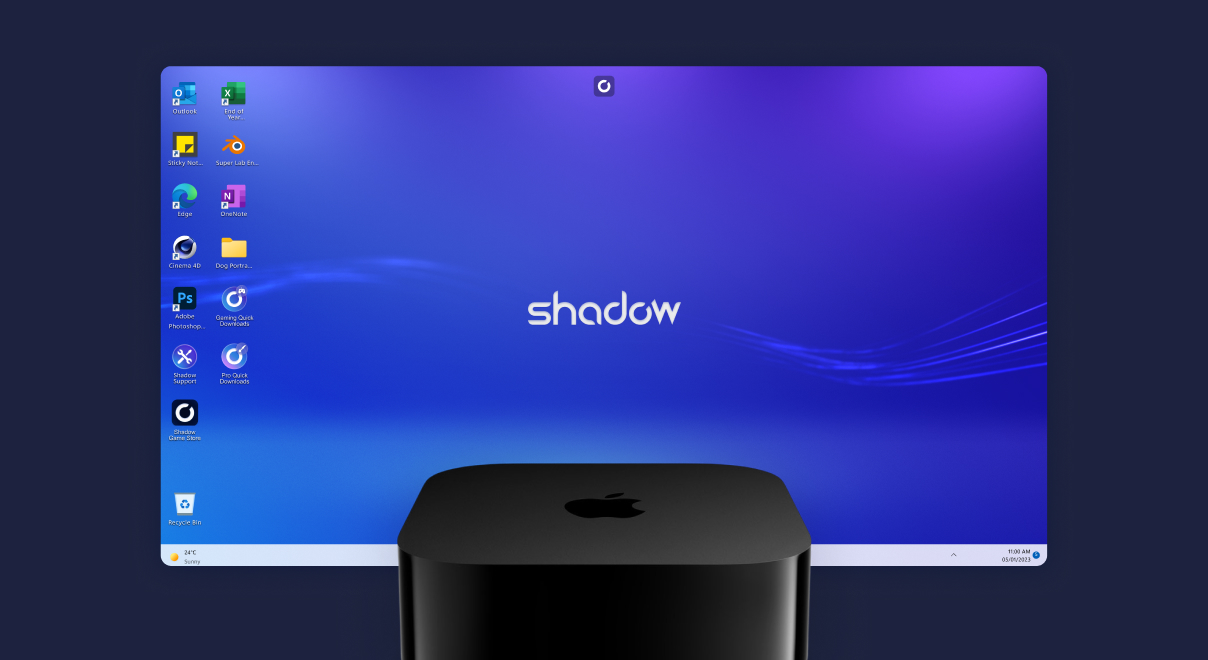
A native tvOS app, on the one living-room box no other cloud gaming service reaches.
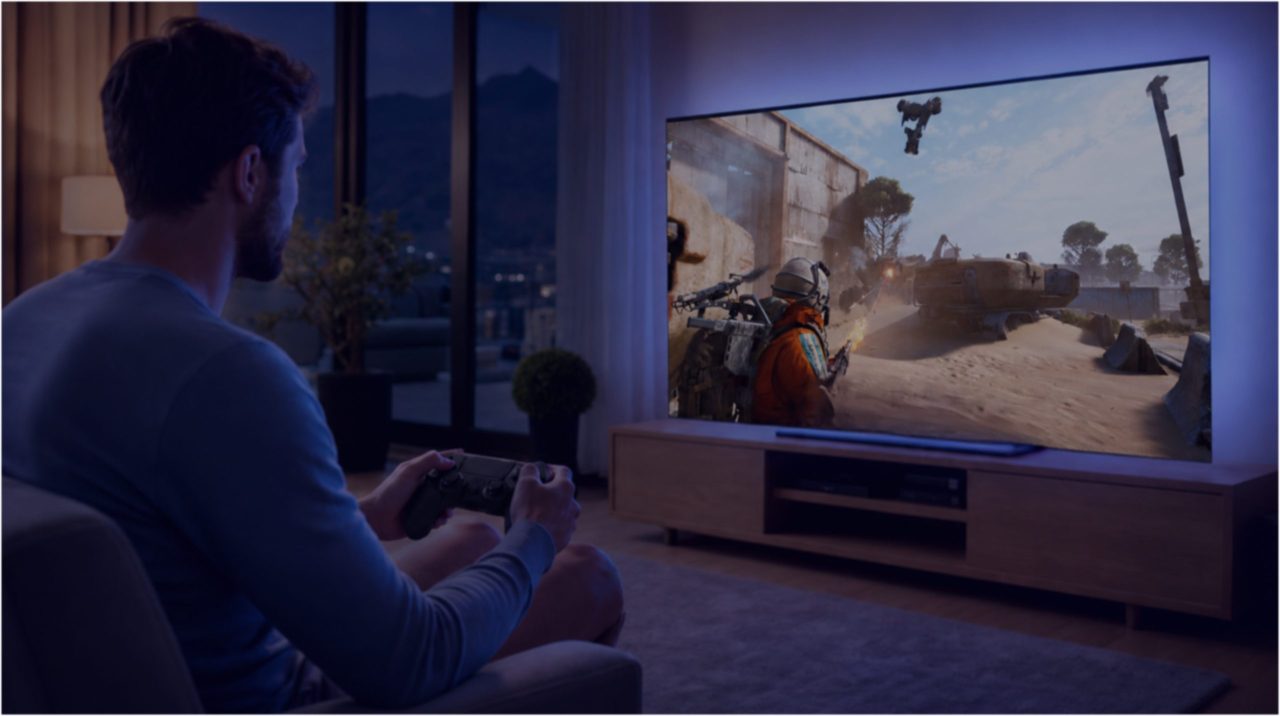
Your Android TV or Google TV box runs a full Windows PC, launchers and mods included.
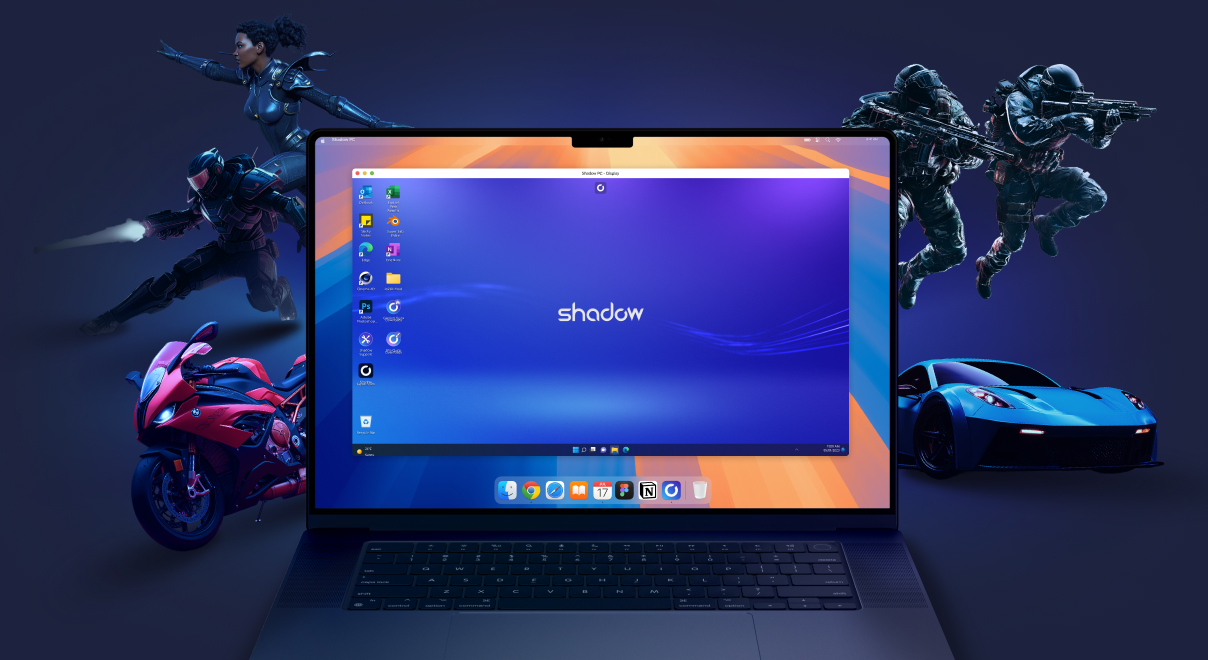
The same Shadow PC turns your Mac into a gaming rig. Same library, same saves.
Your phone is already in your pocket
Three inputs, no keyboard, no desk. Start a session tonight and see how far the sofa gets you.
Frequently asked questions
Use Gamepad as a mouse. The feature maps the Windows pointer to your controller stick, so you can browse a launcher, open a folder or change a setting without leaving the sofa. If you'd rather use a touch surface, Companion mode turns your phone into a trackpad.
Yes. The Shadow mobile app includes a virtual controller with sticks, buttons and triggers. It works on any device where you can install the app, and it is enough to start playing tonight if no gamepad is at hand.
Yes, through Companion mode. Your phone becomes a trackpad and a full keyboard for your Shadow PC, which is the fastest way to type a password, a search or a message on a television.
Bluetooth controllers pair with the box or device running the Shadow app: Xbox pads, PlayStation pads and most third-party gamepads. Pair it the way you would for any other game on that device, then launch Shadow. Step-by-step guides live in our help center.
Yes. They pair with your box and work inside Windows exactly as they would on a desktop machine. Useful for strategy games, shooters, and any evening that involves real typing.
Start with the connection between the controller and your device, then check that the game itself sees a gamepad. Our help center has a dedicated troubleshooting article covering pairing, USB forwarding and per-game detection.